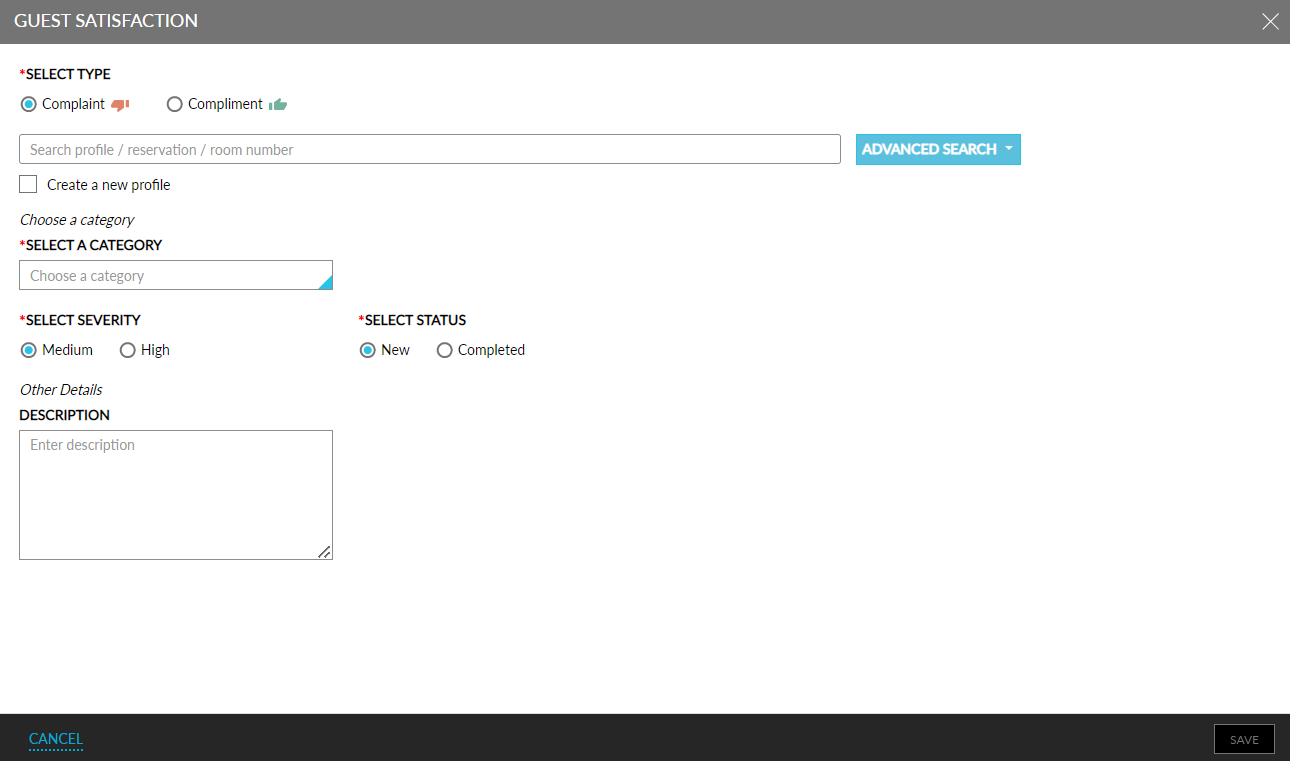
Adding Guest Satisfaction Records
Click the Add button on the Guest Satisfaction screen to add complaints or compliments.
Enter the following information in the Guest Satisfaction pop-up screen.
|
Field |
Description |
|---|---|
|
Select Type |
Select between complaint and compliment using the radio buttons. Compliments are indicated with a green-coloured thumbs-up icon and complaints are indicated with a red-coloured thumbs-down icon. |
|
Search by name |
Search the guest’s profile using the search bar. Users can perform an advanced search by clicking the Advanced Search button. |
|
Create a new profile |
Select the checkbox to create a new profile. Either the phone number or email address is required to create a new profile. |
|
Last Name |
Enter the last name of the guest. |
|
First Name |
Enter the first name of the guest. |
|
|
Enter the email address of the guest. |
|
Phone |
Enter the phone number of the guest. |
|
Active |
Select the checkbox to display active guest profiles during a search. |
|
Archive |
Select the checkbox to display archived guest profiles during a search. |
|
Select a Category |
Select a category to add a complaint or compliment from the drop-down list, for example, Housekeeping. |
|
Room Number |
Select the room number from the drop-down list for Housekeeping and Maintenance categories. |
|
Service |
Select the relevant service from the drop-down list for Housekeeping and Maintenance categories. |
|
Area Type |
Choose between Room and General Area using the radio buttons for Maintenance. |
|
Name |
Type the name of the General Area and choose from the list. |
|
Enter Staff Name |
Enter the name of the staff when choosing the category as Staff. |
|
Create Housekeeping Service Request |
Enable to toggle to create a Housekeeping service request when adding the Guest Satisfaction record. |
|
Create Maintenance Service Request |
Enable to toggle to create a Maintenance service request when adding the Guest Satisfaction record. |
|
Select Severity |
Select between medium and high using the radio buttons. |
|
Select Status |
Select between new and completed using the radio buttons. |
|
Description |
Enter a description if required in the textbox. |
Click the Cancel button or the cancel icon on the top right corner to close the pop-up screen.
Click the Save button to save the Guest Satisfaction record.